
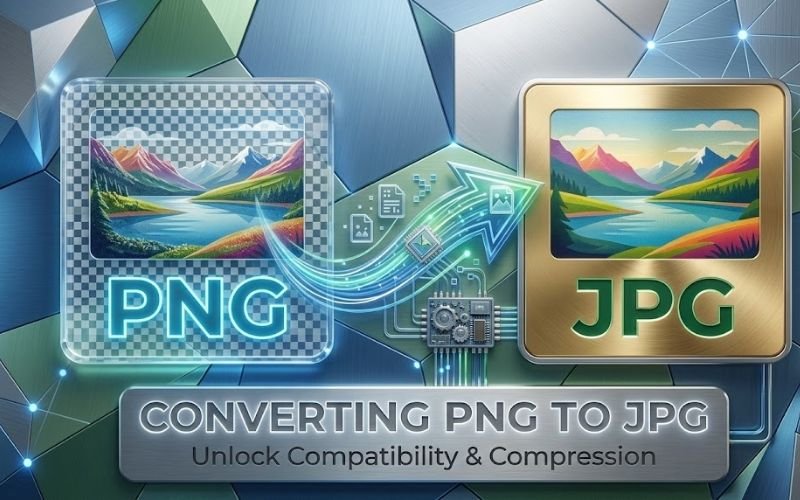
In a digital world driven by images, managing the right format for your visuals is essential. Whether you’re a graphic designer, a web developer, or simply someone who enjoys sharing photos online, you might often find yourself needing to convert images between formats. One common transformation that many users encounter is the need to convert PNG to JPG. This guide will explore the importance of this conversion, how to do it using Creatoolz, and some best practices for managing your images effectively.
Understanding Image Formats: PNG vs. JPG
What is PNG?
PNG (Portable Network Graphics) is a widely used graphics format that supports lossless compression. This means that images retain their quality, unlike formats that lose some data during compression. PNG files are excellent for images requiring transparency, intricate designs, and high-resolution graphics. However, PNG files can be larger than other formats, which can affect loading times on websites.
What is JPG?
JPG (Joint Photographic Experts Group) is one of the most commonly used formats for digital photos. It employs lossy compression, reducing file sizes by discarding some data. JPG files are ideal for photographs and images with rich color gradients. They load faster on the web due to their smaller size, making them favorable for online use. However, this format does not support transparency.
Why Convert PNG to JPG?
1. Reduced File Size
One of the primary reasons to convert PNG to JPG is to reduce the file size of your images. JPG files generally occupy less space, which is especially important for web performance. Faster-loading pages can significantly enhance user experience and improve search engine rankings.
2. Universal Compatibility
JPG is universally compatible across all web platforms and devices. While most modern browsers support PNG, some older systems may not handle it well. Converting to JPG ensures that your images will be viewable by everyone, regardless of their device or software.
3. Better for Photographic Images
If your images are primarily photographs, JPG is often the preferred format. Its lossy compression is optimized for the nuances and gradients found in photos, allowing them to be displayed at a high quality while maintaining a smaller file size.
4. Simplified File Sharing
JPG files are easier to share across various platforms, including websites, social media, and email attachments. Their smaller size allows for quick uploads and downloads without sacrificing quality.
How to Convert PNG to JPG Using Creatoolz
Converting PNG to JPG with Creatoolz is simple and efficient. Here’s a step-by-step guide:
Step 1: Access the PNG to JPG Converter
Navigate to the Creatoolz PNG to JPG Converter. The user interface is designed for convenience, requiring no prior registration.
Step 2: Choose Your PNG Files
Click on the area labeled “Choose PNG Files.” You can upload your images by either dragging and dropping them into the designated area or clicking to select them from your device. Creatoolz allows for multiple file uploads, so feel free to select several images at once.
Step 3: Start the Conversion Process
Once your images are uploaded, click the “Convert to JPG” button. The Creatoolz platform will quickly handle the conversion, processing your images in a matter of moments.
Step 4: Download Your Converted Images
After the conversion is complete, you will receive a prompt to download your new JPG files. These images will now be ready for use on your website, in presentations, or for sharing on social media.
Best Practices for Image Management
Converting PNG to JPG is essential, but image management doesn’t stop there. Here are some best practices:
1. Use Descriptive Filenames
When saving your converted JPG files, name them descriptively. This helps in organizing your images and improves SEO. Use relevant keywords that describe the content of the image for better indexing.
2. Optimize for Web Use
After conversion, consider using further compression tools to reduce file sizes even more, ensuring quick load times without compromising quality.
3. Regularly Review Your Image Library
Keep your image library organized by regularly auditing your files. Remove outdated images and keep only those that add value to your projects. This maintains a clutter-free workspace and enhances productivity.
4. Include Alt Text
Always add alt text (alternative text) to your images when uploading them to websites. This improves accessibility for visually impaired users and helps search engines understand your images better.
5. Experiment with Formats
While JPG and PNG are common, explore other formats like WEBP that offer superior compression and quality. Different formats may suit different projects better, depending on your needs.
Common Challenges and Solutions
Problem: Quality Loss After Conversion
If you notice a drop in quality when converting from PNG to JPG, ensure you’re starting with high-resolution PNG files. Quality can also depend on how many times you save and compress a JPG image. Each time a JPG is saved, it may lose quality due to its lossy compression nature.
Problem: File Size Still Too Large
If your converted JPG files remain larger than expected, review the image settings in Creatoolz. You may want to adjust compression settings or use additional software to further compress the images.
Conclusion
Converting PNG to JPG is a vital skill for anyone managing images in our digital age. With Creatoolz, this process is simplified, allowing you to enjoy all the benefits of JPG without the hassle.
By following the steps outlined in this guide and adopting best practices for image management, you can enhance your images for better performance, accessibility, and user satisfaction. Start your conversion journey today with Creatoolz, and unlock the full potential of your digital imagery! Effective image management can significantly elevate the quality of your work and your online presence.
Frequently Asked Questions (FAQs)
Why would I convert PNG to JPG?
Converting PNG to JPG reduces file size, making the images easier to share and upload while still maintaining good quality for web use.
How can I convert PNG to JPG using Creatoolz?
To convert PNG to JPG with Creatoolz, simply upload your PNG file, select JPG as the output format, and click the convert button to download.
Is there any loss in quality when converting PNG to JPG?
Yes, converting from PNG to JPG involves lossy compression, which may reduce image quality. It’s best for images where file size is more crucial than quality.
Can I convert multiple PNG files to JPG at once?
Yes, Creatoolz allows batch conversion, enabling you to convert multiple PNG files to JPG simultaneously for greater efficiency.
Are there any size limits for the files I can convert?
Yes, different online tools have size limits for uploads. Check the specifications on Creatoolz to ensure your files meet the requirements for conversion.