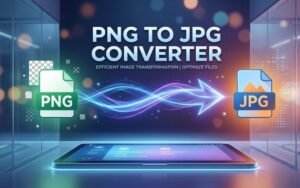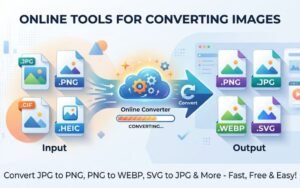

In the realm of digital imagery, the need for versatile formats is paramount. Despite the WebP format’s increased popularity due to its improved quality and sophisticated compression capabilities, users frequently need to convert WebP to PNG for compatibility reasons. The advantages of both image formats, the conversion procedure, and best practices to guarantee ideal image management are all covered in this article.
Understanding WebP and PNG
WebP: What is it?
Google created WebP, a contemporary image format that offers lossless and lossy compression. It offers significant advantages over older formats, allowing for smaller file sizes without sacrificing image quality. For websites where performance and speed are crucial, this is especially advantageous.
Key Features of WebP:
High Compression Efficiency: WebP files can be significantly smaller than JPEG and PNG for similar quality, leading to faster load times.
Support for Transparency: WebP combines the features of both PNG and JPEG, allowing for transparent backgrounds.
Animation Support: Unlike PNG, WebP can store animated images, similar to GIFs but with better compression.
PNG: What is it?
PNG (Portable Network Graphics) is a raster graphics format that supports lossless data compression and is widely used for web graphics due to its ability to maintain high image quality. PNG is noted for its transparency capabilities and is often employed in web design for logos and illustrations.
Key Features of PNG:
Lossless Compression: PNG preserves the original quality of an image through lossless compression.
Full Transparency: PNG supports varying levels of transparency, making it ideal for web graphics.
Wide Compatibility: PNG files are compatible with nearly all browsers and software, making them an excellent choice for universal use.
Why Convert WebP to PNG?
While WebP has many advantages, there are compelling reasons to convert these files to PNG:
-
Compatibility
Many older browsers and software applications do not support WebP natively. Converting WebP images to PNG ensures that they can be viewed by all users, regardless of the tools they are using.
-
Editing Flexibility
PNG images are the gold standard for editing in graphics software. If you need to make adjustments or modifications to a WebP image, converting it to PNG can simplify the editing process.
-
Preserving Transparency Without Issues
Although WebP supports transparency, some applications may handle transparency differently. PNG provides a more consistent experience when dealing with transparent areas, ensuring your images look the same across all platforms.
-
Long-Term Use and Storage
For archives and collections where long-term usability is a concern, PNG is often preferred. Its lossless nature ensures the original quality remains intact, making it suitable for future use.
How to Convert WebP to PNG
Converting WebP to PNG is a straightforward process, especially when using user-friendly platforms like Creatoolz. Here’s a simple guide to follow:
Step 1: Select a Reliable Conversion Tool
Choose a reputable online tool, such as Creatoolz, designed specifically for image conversions. These tools typically offer straightforward interfaces that make the process simple and efficient.
Step 2: Upload Your WebP File
Navigate to the relevant section of the tool and upload the WebP images you wish to convert. Depending on the platform, you may be able to upload multiple files at once.
Step 3: Choose Your Settings
Many conversion tools will allow you to adjust output settings, such as image size or quality. For most users, the default settings will suffice, but it’s worth reviewing to ensure they meet your specific needs.
Step 4: File Conversion
Launch the conversion procedure. This usually takes just a few moments, depending on the size and number of images you are converting.
Step 5: Download Your PNG Images
Once the conversion is complete, download your newly created PNG files. Always review the files to ensure the conversion maintained the quality and appearance you desire.
Best Practices for WebP to PNG Conversion
To get the most out of converting WebP to PNG, keep these best practices in mind:
-
Prior to conversion, optimize
Before conversion, consider optimizing your WebP images for size if they contain unnecessary data. This practice ensures the resulting PNG files are more manageable and easier to use.
-
Utilize Batch Conversions
If you have multiple images to convert, use tools that support batch conversions. This feature saves significant time and effort compared to individual file uploads.
-
Verify Compatibility After Conversion
Make sure your PNG files are suitable and appear properly by testing them in several applications after conversion, particularly if the photos are being used for professional or marketing purposes.
-
Make Use of High-Quality Pictures
Ensure that your original WebP images are of high quality before conversion. While the PNG format will maintain quality, starting with a high-resolution image will yield the best results.
Conclusion
Converting WebP to PNG is essential for users who seek compatibility, flexibility, and quality in their images. While WebP offers numerous advantages, the PNG format remains a reliable option, especially for those who prioritize universal access and ease of editing. Leveraging the capabilities of tools like Creatoolz not only makes the conversion process seamless but also enhances your overall image management strategy. As the digital landscape evolves, being equipped with the right tools and knowledge for image conversion ensures you remain competitive and effective in your endeavors. Stay tuned for when Creatoolz is back online, ready to provide the essential tools you need for all your image conversion needs. I appreciate your patience.
Frequently Asked Questions (FAQ)
What is WebP to PNG conversion?
WebP to PNG converts Google’s WebP images (smaller file size) to PNG format (lossless transparency support) for better compatibility.
Why convert WebP to PNG instead of JPG?
PNG preserves transparency and quality perfectly, unlike JPG which compresses and loses details—ideal for logos and graphics.
Can I convert WebP to PNG online for free?
Yes, tools like Convertio, CloudConvert, or ILoveIMG offer free WebP to PNG conversion with batch processing up to 100MB.
Does converting WebP to PNG increase file size?
Yes, PNG files are typically 2-5x larger than WebP due to lossless compression, but they maintain perfect quality and transparency.
Is WebP to PNG conversion safe for my images?
100% safe—no quality loss, no watermarks on reputable converters. Always download from trusted sites to avoid malware.