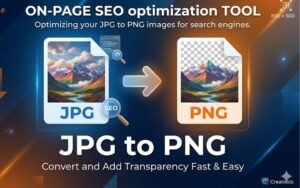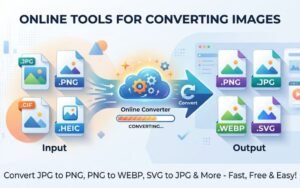

In the ever-evolving digital landscape, images play a pivotal role in capturing attention and conveying messages effectively. For designers, marketers, and everyday users alike, understanding how to manage image formats can significantly impact the quality and performance of their visuals. One common conversion task involves changing JPG to PNG. This guide will explore the reasons behind this conversion, the steps to achieve it using Creatoolz, and tips for effective image management.
Understanding Image Formats: JPG vs. PNG
What is JPG?
JPG (Joint Photographic Experts Group) is a popular image format that uses lossy compression. While this means that some image data is lost during compression, JPG remains a preferred choice for photographs and images with rich color gradients. The smaller file sizes of JPGs are ideal for web use, where load times can significantly affect user experience.
What is PNG?
PNG (Portable Network Graphics) is an image format that supports lossless compression. This characteristic ensures that no image quality is lost during compression, making PNG an excellent option for images requiring fine details and sharp edges, such as logos and graphics. A key feature of PNG is its support for transparency, allowing images to blend seamlessly into various backgrounds.
Why Convert JPG to PNG?
1. Preserve Image Quality
One of the primary reasons for converting JPG to PNG is to maintain image quality. Since JPG utilizes lossy compression, it can lead to a loss of detail and clarity in images, especially when saved multiple times. By converting to PNG, you ensure that the original details of the image are preserved.
2. Transparency Support
If you’re working with graphics that require transparent backgrounds—such as logos or overlays—converting to PNG is essential. JPG does not support transparency, which can lead to unwanted backgrounds in your images.
3. Better for Graphics and Text
PNG files excel in preserving sharp edges and text clarity compared to JPGs. If your image contains text or intricate designs, converting to PNG ensures that these elements remain crisp and clear.
4. Improved Web Performance
Using PNG files can enhance the visual appeal of your website, especially when displaying graphics or logos. While PNG files can be larger than JPGs, the quality is often worth it, particularly for designs that need to grab attention.
How to Convert JPG to PNG Using Creatoolz
Using Creatoolz for converting JPG to PNG is straightforward and efficient. Follow these steps to convert your images in just a few clicks:
Step 1: Access the JPG to PNG Converter
Navigate to the Creatoolz JPG to PNG Converter. The user-friendly interface makes the process accessible to anyone, regardless of technical expertise.
Step 2: Choose JPG Files
Click on the “Choose JPG Files” button. You have the option to upload images directly from your computer or simply drag and drop them into the designated area. You can convert multiple files simultaneously, saving you time.
Step 3: Start Conversion
Once your JPG files are uploaded, click the “Convert to PNG” button. The Creatoolz platform will process your images quickly, ensuring that they are converted effectively.
Step 4: Download Your Converted Images
After the conversion is complete, you will be prompted to download your new PNG files. These images will now be ready for use in your projects, with preserved quality and any transparency if applicable.
Tips for Effective Image Management
Converting JPG to PNG is just one part of managing your images effectively. Here are some additional tips:
1. Use Descriptive Filenames
When saving your converted PNG files, rename them to be descriptive and relevant to your content. This helps with organization and enhances search engine optimization (SEO). A filename like “company-logo.png” is more effective than “image1.png.”
2. Add Alt Text to Images
Always include alt text for images uploaded to your website. This improves accessibility for users with visual impairments and helps search engines index your content more effectively. Aim to use relevant keywords in your alt text, such as “convert JPG to PNG.”
3. Regularly Audit Your Images
Periodically review your image library to ensure that all files are relevant, optimized, and high-quality. Replace outdated images with fresh, high-quality content to maintain an appealing and professional online presence.
4. Optimize Images for Web Use
While PNG files maintain quality, they can also be larger in size. Use image compression tools to reduce PNG file sizes for faster loading times. This balance is crucial for web performance and user experience.
Common Challenges and Solutions
Problem: Quality Loss After Conversion
If you’re worried about potential quality loss during conversion, ensure that the original JPG images are high-resolution. Starting with a high-quality image will yield better results in PNG format.
Problem: File Size Too Large
If your PNG files are larger than expected, consider adjusting the settings in the conversion tool or exploring further optimization options post-conversion. Compression software can help reduce PNG file sizes without sacrificing quality.
Conclusion
Converting JPG to PNG is an essential task for anyone looking to enhance the quality and utility of their images. With Creatoolz, this process is simple and effective, allowing you to preserve the integrity of your visuals while benefiting from the features that PNG format offers.
By following this guide and adopting best practices for image management, you’ll be able to optimize your images for better performance and visual appeal. Whether for personal projects or professional use, mastering the conversion process can elevate your digital presence and improve user experience.
Start converting your images today with Creatoolz and unlock the potential of high-quality visuals in your work! With the right tools and practices, you can ensure that your images always look their best.
Frequently Asked Questions (FAQs)
Why should I convert JPG to PNG?
Converting JPG to PNG allows for higher image quality without loss, supports transparency, and is ideal for graphics and web use.
How do I convert JPG to PNG with Creatoolz?
To convert JPG to PNG with Creatoolz, upload your JPG image, select PNG as the output format, and click the convert button to download the file.
Is there any quality loss when converting from JPG to PNG?
No, converting from JPG to PNG is a lossless process that maintains the original image quality, though it can increase file size.
Can I convert multiple JPG files to PNG at once?
Yes, Creatoolz allows batch conversion, enabling you to convert several JPG files to PNG simultaneously for efficiency.
Are there any file size limits for conversions?
Yes, Creatoolz may have size limits for uploads. Check their specifications to ensure your files meet the requirements for conversion.