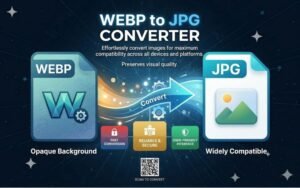
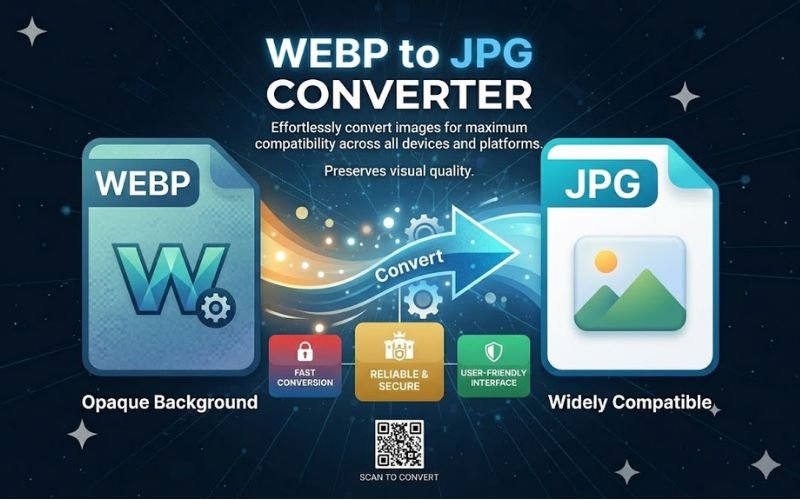
Converting WEBP images to JPG remains a common requirement for web designers, marketers and everyday users who need maximum compatibility across platforms and applications. Creatoolz’s WEBP to JPG tool offers a fast, browser‑based solution that requires no registration—simply upload, convert and download. This article explains when to convert WEBP to JPG, the benefits and limitations of each format, and best practices to preserve quality while optimising images for web and other uses.
Why convert WEBP to JPG?
WEBP is a modern image format developed by Google that delivers superior compression (both lossy and lossless) compared with traditional formats. It often produces much smaller files while keeping good visual quality. However, not all tools, older browsers, or software programs support WEBP natively. Converting WEBP to JPG is useful when:
- You need broad compatibility with legacy systems, email clients, or desktop software that prefers JPG.
- You are preparing images for platforms that do not accept WEBP uploads.
- You require a widely accepted, easy‑to‑share format for clients or collaborators.
About Creatoolz WEBP to JPG converter
Creatoolz provides a simple, no‑friction WEBP to JPG converter accessible directly in your web browser. Key features include:
- Drag‑and‑drop uploads for single or multiple WEBP files.
- Fast conversion process with immediate downloads.
- No account or software installation required—ideal for quick, on‑the‑go tasks.
- Intuitive interface suitable for designers, developers and non‑technical users alike.
How to convert WEBP to JPG with Creatoolz
- Choose WEBP files: Drag and drop your files into the converter or select them from your device.
- Start conversion: Click “Convert to JPG” and let the tool process your images.
- Download images: When conversion finishes, download the JPG files and use them in email, presentations, social media or legacy applications.
This three‑step flow reduces friction and saves time compared with installing desktop apps or configuring conversion scripts.
WEBP vs JPG — Benefits and trade‑offs
Understanding the strengths of each format helps you choose when conversion makes sense:
- WEBP: Offers smaller file sizes and can support transparency (lossless WEBP or WEBP with alpha) — ideal for web performance and modern web projects. It can improve Core Web Vitals by reducing Largest Contentful Paint (LCP).
- JPG: Universally supported across browsers, email clients and image editors. JPG is best for photographic images when transparency is not required. It uses lossy compression that reduces file size at the cost of some quality.
When converting from WEBP to JPG you may lose transparency (WEBP alpha channels are not preserved in JPG) and, depending on compression settings, you may introduce additional artefacts. If transparency is important, consider converting to PNG instead.
SEO and performance considerations
For web pages, image format choices affect page speed and SEO. Best practices include:
- Use WEBP where browser and CMS support exists to reduce page weight and improve load times.
- Convert to JPG only when compatibility is essential—use optimized JPGs to keep file sizes reasonable.
- Resize images to the display dimensions required by your page before conversion to avoid serving oversized files.
- Combine conversions with compression and responsive techniques (srcset, picture element) to serve the best format and size per device.
Best practices for quality and optimisation
- Keep originals: Archive original WEBP files so you can reconvert or re-export if needed.
- Resize first: Scale images to their required display size prior to conversion to avoid excess pixels.
- Choose the right quality setting: After conversion, review JPG quality—too high means large files; too low produces noticeable artefacts. Aim for a balance that preserves visual quality while reducing bytes.
- Use responsive delivery: Serve different sizes and formats based on device and browser capabilities using srcset or the picture element.
- Compress further if needed: After conversion, run JPGs through a compression tool or optimizer to reduce file size without visible degradation.
When not to convert WEBP to JPG
Avoid conversion when WEBP’s benefits are required:
- If the target environment accepts WEBP, keep it for smaller file sizes and improved page performance.
- If transparency must be preserved, convert WEBP to PNG instead of JPG.
- If repeated edits are expected, retain a lossless master (such as WEBP lossless or a layered PSD) rather than repeatedly converting lossy images.
Security and privacy considerations
Creatoolz is a browser‑based converter convenient for public and marketing assets. As with any online tool, avoid uploading confidential or sensitive images unless you have reviewed the site’s privacy policy and are comfortable with its terms. For most marketing, blog and social images, the convenience outweighs the risk.
Who benefits from the WEBP to JPG converter?
- Web developers and designers needing compatibility with older platforms or client systems.
- Content creators preparing assets for email campaigns and social networks that prefer JPG.
- Marketing teams and freelancers who require quick conversions without installing software.
- Anyone needing a fast, dependable way to convert images while on the move.
Conclusion
Converting WEBP to JPG is often necessary for compatibility and ease of sharing. Creatoolz’s WEBP to JPG converter simplifies the task—upload, convert and download—without the need for accounts or software installs. Use WEBP where possible to maximise performance, but convert to JPG when broad compatibility is essential. Follow best practices like resizing before conversion, choosing sensible quality settings, and using responsive image techniques to keep pages fast and visually strong. Try the Creatoolz WEBP to JPG tool for quick, reliable conversions and streamline your image workflow today.
Frequently Asked Questions (FAQs)
1. What is a WEBP to JPG converter?
A WEBP to JPG converter is an online tool that changes WEBP images into JPG format so they can be used on all devices and platforms easily.
2. Is this WEBP to JPG converter free to use?
Yes, Creatoolz offers a completely free WEBP to JPG converter with no hidden charges or subscription required.
3. Do I need to install any software to convert WEBP to JPG?
No, the tool works directly in your browser. You don’t need to download or install anything.
4. Will the image quality be reduced after conversion?
The tool maintains high image quality, but JPG is a compressed format, so there may be slight quality loss compared to WEBP.
5. Is it safe to upload my images to this tool?
Yes, your images are processed securely, and most tools automatically delete files after conversion to protect your privacy.