In the fast-evolving digital landscape, managing images efficiently is crucial for web designers, developers, and content creators alike. One common requirement is converting images from WebP to JPG format. This article explores the benefits of the WebP format, the advantages of switching to JPG, and provides a step-by-step guide on how to perform this conversion effectively.
Understanding WebP and JPG Formats
WebP: What is it?
WebP is an image format developed by Google, designed to provide superior compression for images on the web. It supports both lossy and lossless compression, enabling smaller file sizes without sacrificing visual quality. Since its launch, WebP has gained popularity among web developers due to its capacity to improve page load times without sacrificing visual quality.
Advantages of WebP
Reduced File Sizes: WebP offers file sizes up to 34% smaller than JPEG images at equivalent quality, significantly enhancing website performance.
Transparency Support: WebP files can have transparent backgrounds without losing quality, making them versatile for various applications.
Animation Capabilities: Unlike JPG, WebP can create animated images, merging the benefits of GIF and PNG formats.
JPG: What is it?
JPG (or JPEG, which stands for Joint Photographic Experts Group) is one of the most widely recognized image formats used today. It utilizes lossy compression to produce smaller file sizes at the cost of some image quality. Because of its wide compatibility and suitability for photos, JPG is still widely used despite this trade-off.
Benefits of JPG:
Wide Compatibility: JPG images can be opened by virtually all image viewers and editing software, making them extremely versatile.
Good for Photographs: The compression technique used in JPG is particularly effective for photographs, which often contain intricate colors and gradients.
Smaller File Sizes: While generally not as small as WebP, JPG files are still smaller than many other image formats, making them suitable for various applications.
Why Convert WebP to JPG?
-
Broader Compatibility
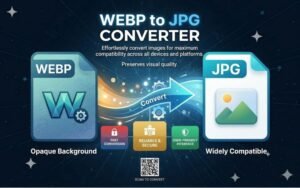
Despite the advantages of WebP, many legacy systems and software applications do not support this format. Converting WebP to JPG ensures that your images can be easily accessed and viewed across all devices and platforms.
-
Simplicity in Editing
JPG images are often favored for editing because most graphic design software is geared toward JPG handling. If you need to alter an image, converting from WebP to JPG makes it easier to manipulate your visuals.
-
Maintaining Quality for General Use
JPG is a well-established format for sharing and storing images. It preserves a good balance between quality and file size. By converting WebP images to JPG, you can ensure that your visuals retain their quality while becoming more adaptable for various uses.
-
Printing Quality
If you intend to print images, JPG is usually the preferred format. It ensures high-quality prints and consistent results, while WebP may not perform the same way in printing scenarios.
How to Convert WebP to JPG
Converting WebP to JPG is a straightforward process, especially with user-friendly online tools like Creatoolz. Here’s a step-by-step guide on how to do it:
Step 1: Select a Trustworthy Conversion Instrument
Select a trustworthy online converter, such as Creatoolz. The platform is designed to facilitate seamless conversions between various image formats.
Step 2: Upload Your WebP Files
Once you’re on the conversion page, simply upload the WebP images you wish to convert. Many tools allow for batch uploads, making it easy if you have multiple files to convert.
Step 3: Modify the settings if needed
Depending on the converter used, you might have the option to adjust the output settings, such as resolution or image quality. It’s beneficial to select the right settings to ensure optimal quality in the final result.
Step 4: Convert the Images
Click on the convert button to initiate the process. The time taken for conversion will depend on the image sizes and the number of files being processed.
Best Practices for Converting WebP to JPG
To ensure you get the best results from converting WebP to JPG, consider these tips:
-
Start with High-Quality Images
If the original WebP files are high-quality, the resulting JPG images will also be of better quality.
-
Use Batch Conversions When Necessary
If you’re converting multiple files, leverage tools that support batch conversions. This can save significant time and effort compared to converting each file individually.
-
Post-Conversion
This is critical for maintaining site speed and performance.
-
Test Your Images on Various Platforms
After conversion, ensure your JPG images display properly across different devices and image viewers.
Converting WebP to JPG has never been easier. With a variety of reasons supporting this transition—from improved compatibility to ease of use—understanding how to effectively manage your image formats is essential in today’s digital landscape.
As technology continues to evolve, having the right tools at your disposal will keep you ahead in the digital content game.
Stay tuned for when Creatoolz is back online, and thank you for your patience!
Frequently Asked Questions
What is WebP and why convert it to JPG?
WebP is a modern image format with smaller file sizes, but JPG is more widely supported on all devices and platforms. Converting ensures better compatibility.
How can I convert WebP to JPG easily?
You can use online tools, software, or image editors. Just upload your WebP file, choose JPG format, and download the converted image.
Does converting WebP to JPG reduce image quality?
Yes, JPG uses compression which may slightly reduce quality, but you can adjust quality settings to keep it clear.
Is it safe to use online WebP to JPG converters?
Most popular tools are safe, but always use trusted websites and avoid uploading sensitive images.
Which format is better: WebP or JPG?
WebP is better for smaller file sizes and faster websites, while JPG is better for compatibility and general use.