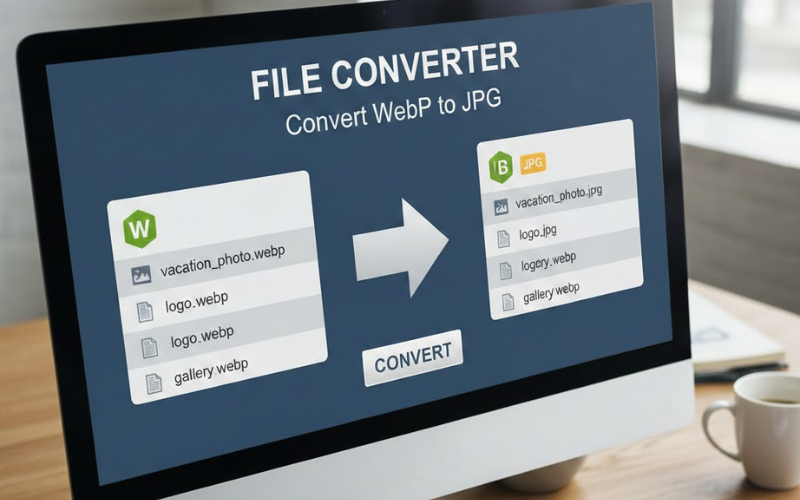
In the world of digital content, images are critical to capturing attention and enhancing user experience. As web technologies evolve, different image formats emerge, each offering unique benefits. One such format is WEBP, developed by Google, which provides excellent compression. However, there are instances where you might need to convert these images to JPG for compatibility and ease of use. In this guide, we’ll explore why you might want to convert WEBP to JPG and how to do it effortlessly using Creatoolz.
Understanding Image Formats
What is WEBP?
WEBP is an image format that supports both lossy and lossless compression, as well as transparency and animation. It was designed to reduce file sizes and improve loading times, making it an excellent choice for web graphics. Despite its advantages, WEBP images are not supported by all web browsers and applications, which can limit their usability.
What is JPG?
JPG (Joint Photographic Experts Group) is one of the most widely used image formats, especially in photography and web design. It supports 24-bit color and uses lossy compression, which significantly reduces file sizes at the expense of some image quality. JPG files are universally compatible across all devices, making them an ideal choice for general use.
Key Differences
- Compression: WEBP can achieve smaller sizes than JPG while maintaining comparable quality. However, JPG files are more widely accepted and easier to use across multiple platforms.
- Transparency: Unlike JPGs, WEBP supports transparent backgrounds, which is beneficial for graphics and logos.
- File Size: While WEBP usually has a smaller file size, converting to JPG is often necessary for compatibility.
Why Convert WEBP to JPG?
1. Compatibility
One of the primary reasons to convert WEBP to JPG is compatibility. While modern browsers like Chrome support WEBP, older browsers and certain applications might not. Converting to JPG ensures that your images are viewable by all users and software.
2. Universality
JPG files are universally recognized and supported across all platforms and devices. If you need to share images via email, social media, or even in print, using JPG will ensure that your audience can access the content without hassle.
3. Editing Flexibility
Many photo editing tools and software support JPG natively. If you plan to edit images further after conversion, using JPG allows you to take full advantage of your editing software’s capabilities.
How to Convert WEBP to JPG Using Creatoolz
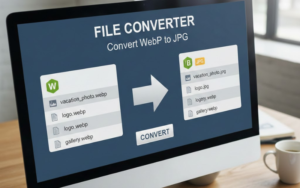
Using Creatoolz to convert WEBP to JPG is simple and efficient. Here’s how to do it step-by-step:
Step 1: Access the WEBP to JPG Converter
Begin by visiting the Creatoolz WEBP to JPG Converter. The interface is intuitive and straightforward, requiring no prior registration.
Step 2: Choose Your WEBP Files
To start, click on the upload area or drag and drop your WEBP images into the designated space. You can upload multiple files at once, which is a great time-saver.
Step 3: Begin Conversion
Once your images are uploaded, you’ll see a button labeled “Convert to JPG.” Click this button to initiate the conversion process. Creatoolz will quickly process your images and convert them to JPG format.
Step 4: Download Your Converted Images
After the conversion is complete, you will receive a prompt to download your new JPG files. These images are now ready to be used in any context without worrying about compatibility.
Best Practices for Image Management
To maximize the benefits of your converted images, consider the following best practices:
1. Optimize Your Images
Even after conversion, JPG images can be further optimized to reduce file size without sacrificing quality. Use additional compression tools or settings to ensure your images load quickly on websites.
2. Use Descriptive Filenames
When saving your converted images, use descriptive filenames that include relevant keywords. For example, renaming “image1.jpg” to “sunset-photograph.jpg” can improve SEO and make file organization easier.
3. Include Alt Text
Always include alt text when using images on your website. This helps with accessibility for visually impaired users and improves your website’s SEO rankings.
4. Regularly Audit Your Image Library
Periodically review your image library to ensure all images are optimized and relevant. Replace outdated images with new or better-optimized versions.
Common Issues and Solutions
Problem: Quality Loss After Conversion
If you notice a drop in image quality after conversion, check the original WEBP file. Sometimes, starting with a high-quality WEBP image can lead to better JPG outcomes.
Problem: Conversion Failures
If the conversion doesn’t work, ensure your WEBP files are not corrupted. Try re-uploading the files or using a different browser to access Creatoolz.
Conclusion
Converting WEBP to JPG is an essential skill for anyone managing images online. By using Creatoolz, you can ensure compatibility, universality, and editing flexibility for your images, enhancing your overall digital content strategy.
Start your image conversion journey today by visiting Creatoolz. By mastering these techniques, you’ll significantly improve the usability of your images and enhance your audience’s experience.
The world of digital media is ever-evolving, and staying updated with the best practices for image formats and conversions is vital for success. Don’t miss out on optimizing your images – embrace the WEBP to JPG conversion process and enjoy the benefits it brings
Frequently Asked Questions (FAQs)
1. What is WebP and why should I convert WebP to JPG?
WebP is a modern image format that reduces file size, but some devices and software do not support it. Converting WebP to JPG makes images compatible with all platforms.
2. Is Creatoolz free to use for WebP to JPG conversion?
Yes, Creatoolz allows users to convert WebP images to JPG for free without installing any software or creating an account.
3. Will image quality be lost after converting WebP to JPG?
Creatoolz converts WebP to JPG while maintaining good image quality, making it suitable for websites and digital use.
4. Can I convert multiple WebP files to JPG at once using Creatoolz?
Yes, Creatoolz supports batch conversion, so you can upload and convert multiple WebP images to JPG at the same time.
5. How does converting WebP to JPG help website performance?
Converting WebP to JPG improves compatibility across devices and ensures images load properly on all browsers and platforms.